
Mastering Impex in SAP Commerce: Syntax, Examples
ImpEx helps to import and export data to and from the database, update existing data, and remove data. Additionally, developers use it to update data at runtime, create project initial data, and import sample data. Furthermore, it streamlines data management across different environments.
ImpEx has a header ,value line and macros.
Macros: It is used to define frequently used statements and avoid repeating String in impex.
Header:

Header is a single line defining mapping of the operations, itemtype, attribute and modifier.
Mode/Operation: Mode specifies what needs to be done with the value line. There are 4 operations:
- INSERT:
- Create new data based on value line
- If we are trying to insert data with a code that already exists, we will see an exception
- UPDATE:
- We can update the existing data using this mode.
- If data is not available in the database, we will see an exception.
- INSERT_UPDATE:
- Using this mode we can create new data and if data already exists, then we can update that existing data.
- We don’t get any exception like INSERT, AND UPDATE mode in this mode, that is why this is the most preferred one for insertion or update.
- REMOVE:
- We can remove the existing data records using this mode.
- We need to specify one unique attribute in the impex to remove records.
Type: define item type to be processed
Attribute: attribute defines which item attributes columns are map to. Value line give actual values for this attributes
Modifier: Modifiers provide extra information for translating a value record to the mapped type attribute. Therefore, they control how the system imports, updates, or resolves data during an ImpEx run.
- unique=true: ensure that attribute uniquely identify item
- lang: used for localized value
- default: provide default value if no value given in value line
- dateformat: define date format for values
- numberformat: used for number value format
- map-delimiter: used while importing map values
- collection-delimiter: used for collection values
- translator: modify the value based on some business logic rather than directly inserting value. Ex., encode password before saving
- mode: used to define how values should added
- mode=append: add new values and keep old values also
- mode=remove: remove specific value from attribute value list
- mode=replace: delete old value and add new values later
- mode=merge: add new values and update existing values
- cellDecorator: manipulate the parsed value. Call before the translator. Ex., add emp before the name of each employee.
To know more about cell decorator and translator, refer Cell Decorator and Translator;
Value line:
- There could be one or more value lines for each header.
- Each value line represents one row of data records.
- Column data is separated by semicolons(;)
Import ImpEx through HAC
- Open HAC: https://<domain>/hac
- Navigate to Console-> Impex Import
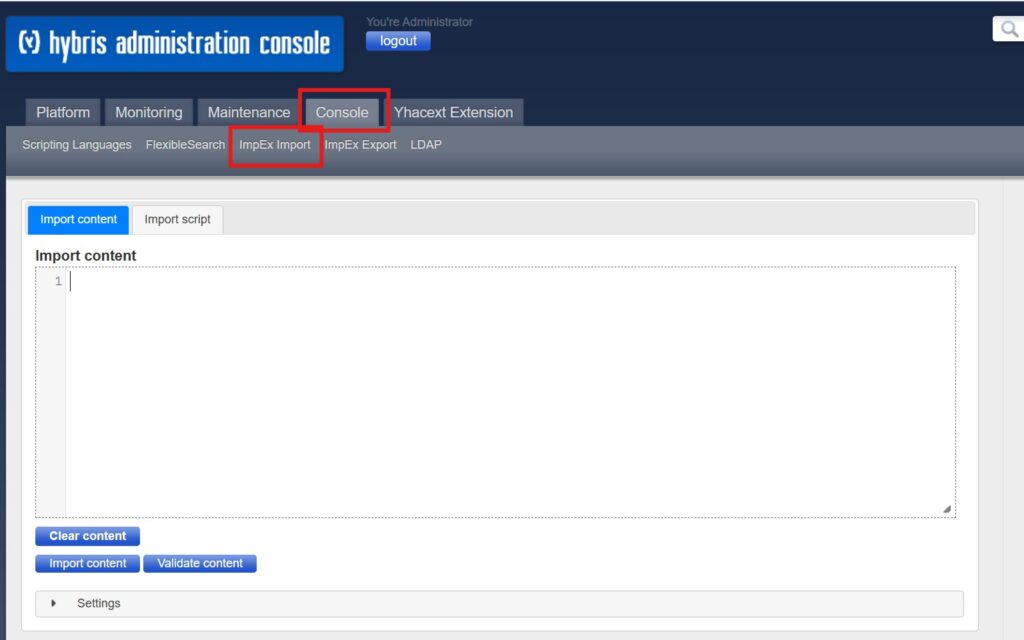
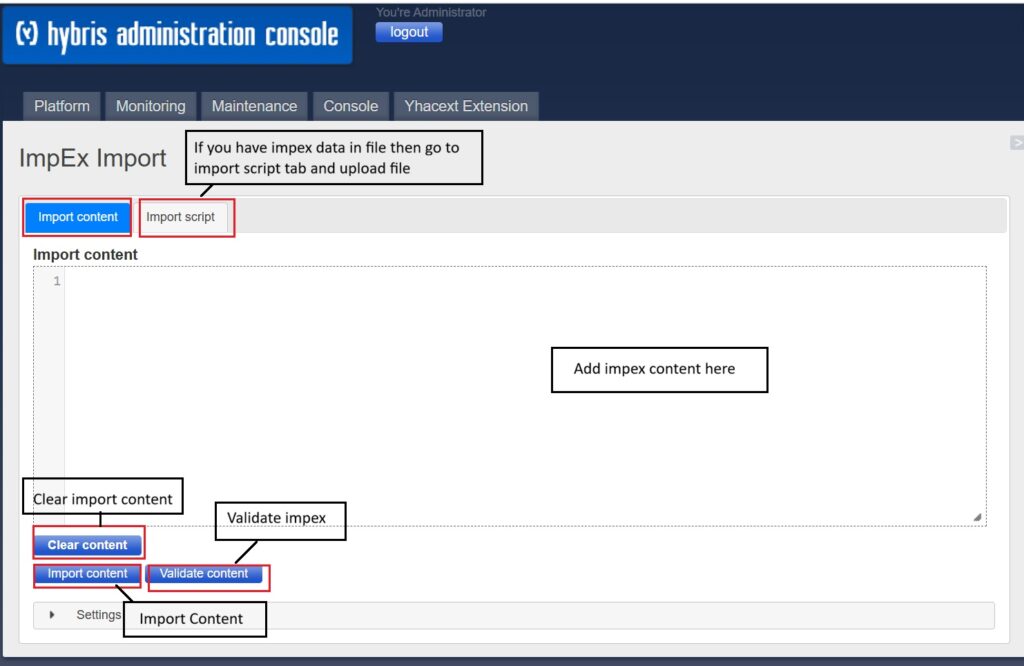
- Choose import method: You have 2 main options to import:
- Paste the script directly
- If you have import data in a file(.impex, .csv, .zip) then go to Import script tab, click choose file, select file, upload it and then click Import
- Click on “Validate content” button to validate the impex
- Click “Import content” after validation
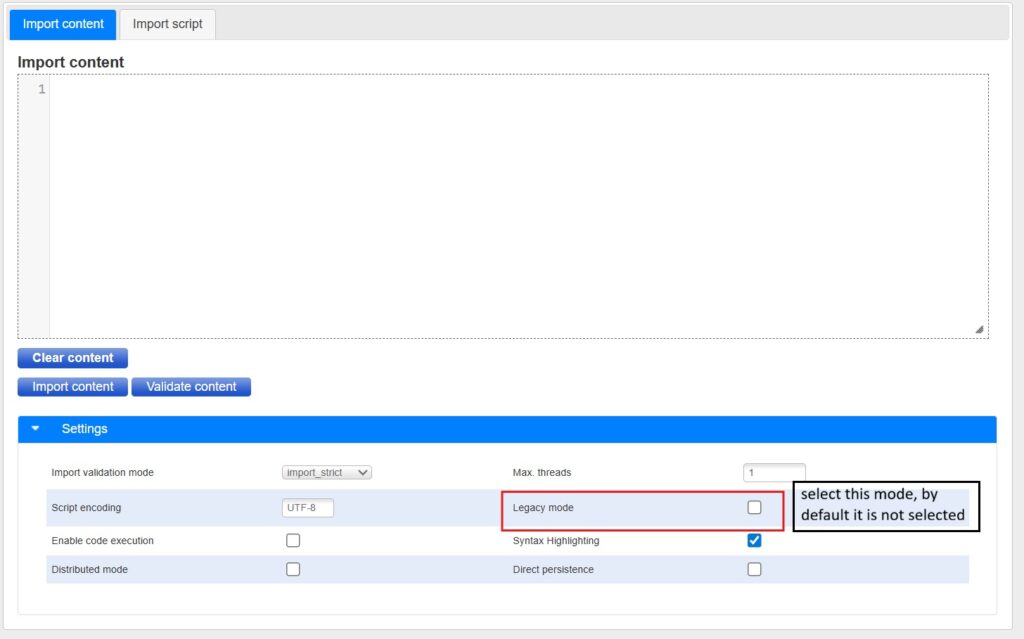
Legacy mode:
By default impex runs in ServiceLayer mode, in which interceptors are triggered, validation logic applied and business rules are applied.
Legacy mode works directly on the lower level Jalo API. Legacy mode does not trigger interceptors. Therefore, the system bypasses validation logic and certain business rules, which makes it slightly faster than service layer mode.
2 ways to enable legacy mode:
- In impex script: #% impex.setLegacyMode(true); add this line in impex script
- Through setting:
Export ImpEx through HAC
- Open HAC: https://<domain>/hac
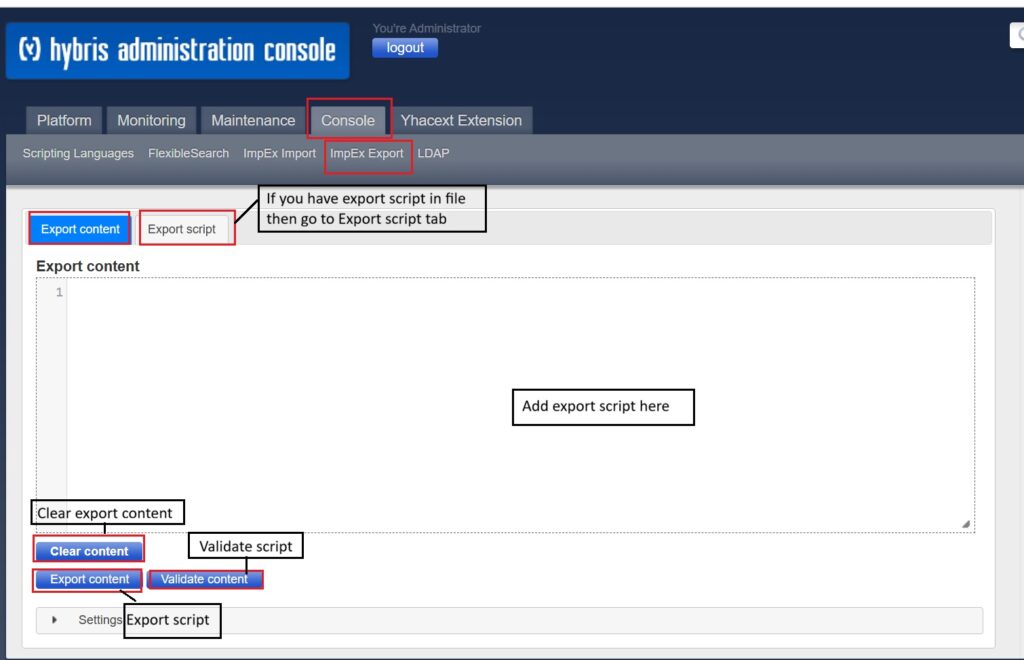
- Navigate to Console-> Impex Export
- Choose export type: You have 2 main options to export:
- Paste the export script directly:
Scenario 1: If we want to export by item type
Example: export all products In script are write below script
“#% impex.exportItems( “”Prouct””, false );”
Scenario 2: If we want to export using flexible search
Example: you want specific records
“#% impex.exportItemsFlexibleSearch( “”SELECT {pk} FROM {Product} WHERE {code} LIKE ‘test%'””);” - If you have export script file, then go to Export script tab, click choose file, select file, upload it and then click Export
- Paste the export script directly:
- Click on “Validate content” button to validate the impex
- Click “Export content” after validation
Batchmode ImpEx
BatchMode in ImpEx allows the system to process multiple rows in a single transaction instead of committing each row individually. As a result, it improves performance for large data imports. However, if one record in the batch fails, then system may roll back the entire batch.
You can use batchmode in UPDATE and REMOVE mode.
The default value is false.
UPDATE Product[batchmode = true]; itemtype(code)[unique = true]; status(code)
                               ; Product                      ; Approved
Practical Examples
1. Create a new customer and assign it to a group
INSERT Customer; uid[unique=true]; name; groups(uid)
; [email protected] ; "Test User" ; customergroup
2. Update name of existing product.
UPDATE Product; code[unique=true]; name[lang=en]; catalogVersion(catalog(id),version); approvalStatus(code)
; P1001 ; "iPhone 15" ; apparelProductCatalog:Online ; approved
3. Assign a new user group to an employee while ensuring that the existing user groups assigned to the user are not removed.
Since we want to update values in an existing list, we should use mode=append
INSERT_UPDATE Employee;name;password[default=$defaultPassword];uid[unique=true];groups(uid)[mode=append]
;sellerapprover;;sellerapprover;salesapprovergroup
4. Remove obsolute products
REMOVE Product; code[unique=true]
; P1001
5. Update value of residual flag for all products
UPDATE Product[batchmode = true]; itemtype(code)[unique = true]; residual
                               ; Product                      ; false