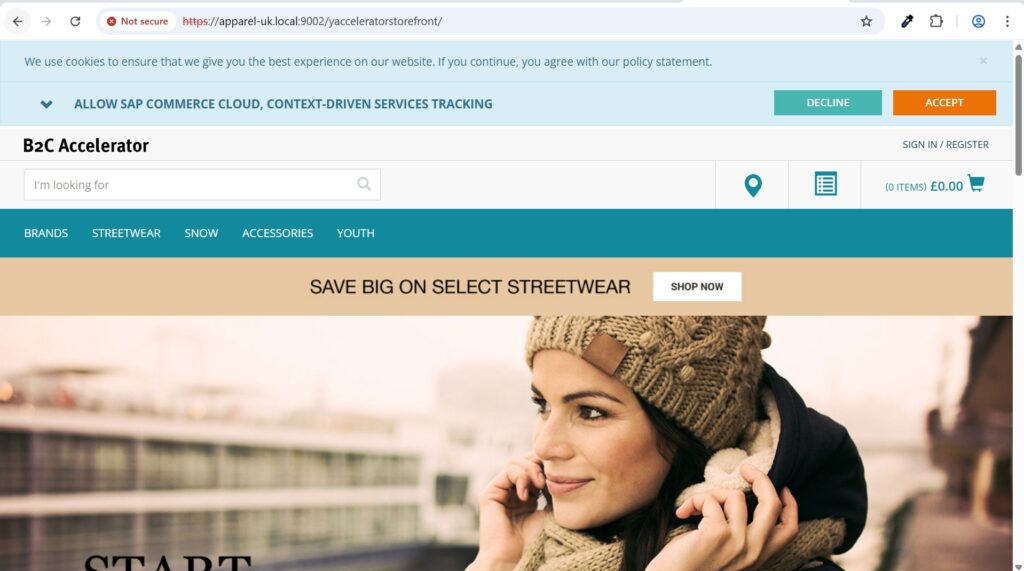
SAP Hybris Installation Tutorial
Step by Step guide for SAP Hybris Installation
STEP 1: Download and unzip hybris suite for SAP hybris installation
Commerce suite contains all the files require to work with hybris. Download the suite zip file from SAP market place. You 7Zip or WinZip to extract files.
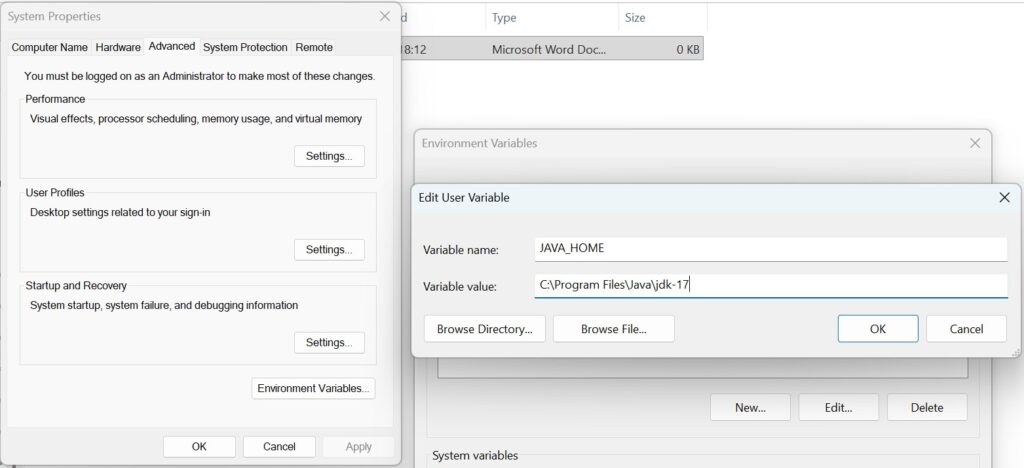
STEP 2: Set Java path in environment variable
STEP 3: Set admin User password
SAP Commerce by default provides lots of users. For our use we need to set the password for one user, generally ‘admin’
Go to installer/recipes/<recipe_name> path, you will get build.gradle file. Add below property in that file
Command: property ‘initialpassword.admin’,’nimda’
property 'initialpassword.admin','nimda'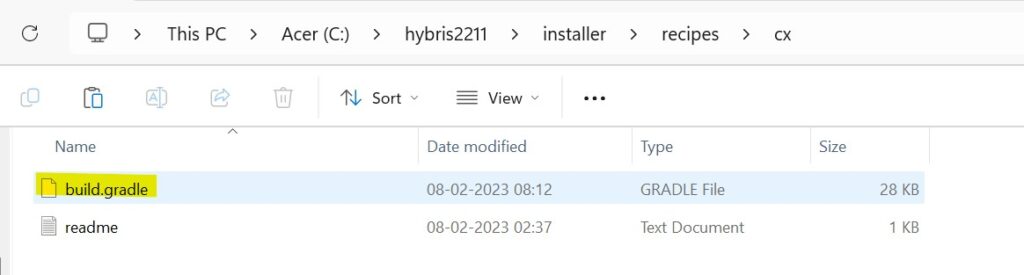

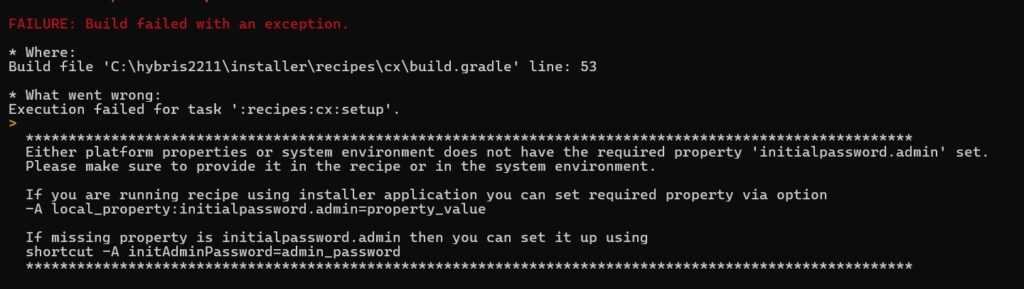
If you do not set admin password, you will get following error during recipe installation
STEP 4: install recipe
To know more about installer recipe, refer recipe.
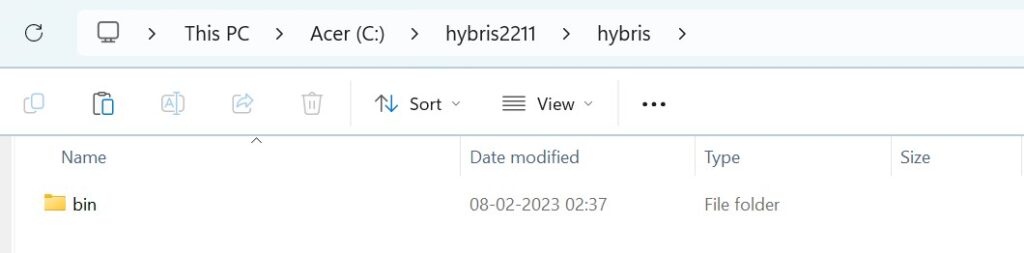
Before installing recipe, in hybris folder we have only bin folder
Go to installer path and open command path
Command to install recipe : install.bat -r <recipeName>
install.bat -r cx
After installation, you will see some new folders inside hybris folder
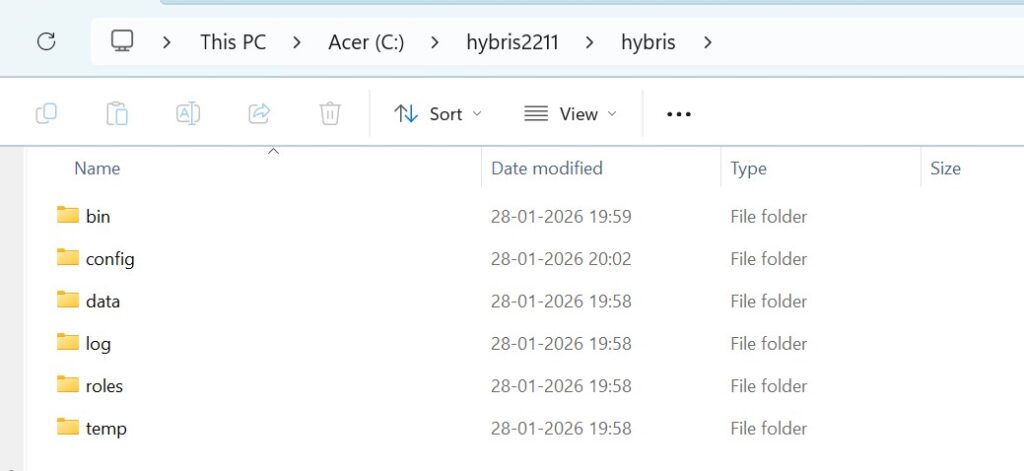
Inside config folder, you will get 2 important files
- local.properties: this file contains all the properties required for site
- localextensions.xml: this file contains all the extensions specified in the recipe
STEP 5: Do build
Navigate to platform folder in command prompt.
First set ANT environment
setantenv.bat
Do the build
ant clean all
STEP 6: Start the server
hybrisserver. bat debug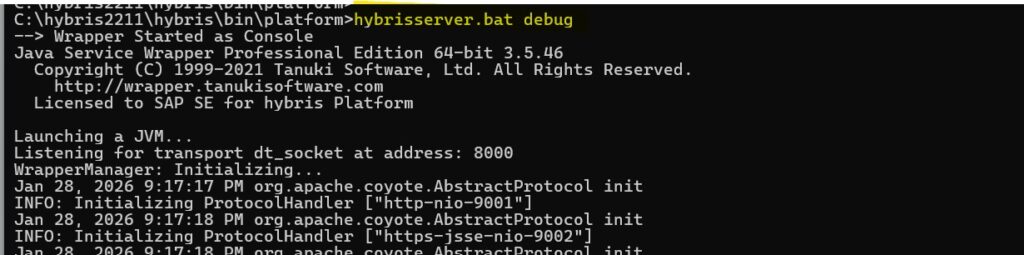
STEP 7: Initialization
We can do initialization by 2 ways:
- Using command prompt:
Navigate to platform folder in command prompt and give below command
ant initialize
- Using HAC:
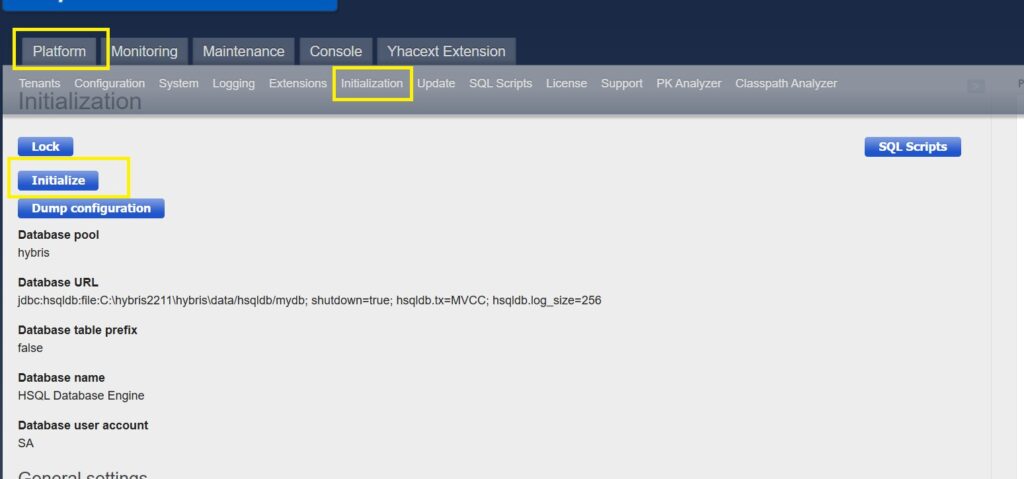
STEP 8: Add URL mapping in the Host file

STEP 9: Access the sample yacceleratorstorefront site.